Get the most out of your Business Plan trial with Notion AI
Start your Business Plan trial and explore what’s possible with Notion AI. Connect your favorite tools, capture meetings automatically, and use Notion Agent to build and run workflows from one place.
When you sign up for Notion’s Business Plan trial, you can explore Notion AI in your workspace. See how it uses context from your connected tools, captures meeting notes, and helps Notion Agent handle end-to-end tasks.
In this guide, you’ll learn how to:
Get started with Notion Agent
Connect tools like Slack and Google Drive to bring more context into your workspace
Capture meetings with AI Meeting Notes
Use other features included in your Business Plan
Notion Agent is your AI teammate inside Notion. It can search across your workspace and connected tools, build databases, update pages, analyze information, and take on tasks from start to finish. If you’re not sure where to start, ask your Agent what it can help you with.
To open Notion Agent, click the circular face icon in the bottom-right corner of your workspace or select New chat in the sidebar.
Here are a few ways to get started with Notion Agent:
Build a database to organize your work: Describe what you want to track, and your Agent can set it up for you. Try asking, “Build a project tracker with an owner, status, priority, deadline, and a way to flag work that’s at risk.”
Describe the type of database you need, and Notion Agent will create it with the right properties, relations, charts, and views.Create a structured page: Ask your Agent, “Build an interview preparation page with research notes, key talking points about my experience, questions I want to ask, and space for follow-up actions.” Your Agent will organize the page into the sections you need.
Search the web for information: Ask your Agent to look into a topic and organize what it finds in Notion. Try, “Research tips for engaging social media posts and create a database with hooks, structure, and call-to-action ideas.”
Turn web search on for external insights, or off to stay within internal docs and tools.
If the result isn’t quite right, give your Agent more context or tell it what to adjust. Learn more in our Notion Agent help doc.
Connect tools like Google Drive, Slack, or Microsoft Teams to Notion AI. Once connected, Notion Agent can search the docs, conversations, and files your team already uses, so you don’t have to find and copy that information into Notion yourself.
To set up a connector, go to Settings and select Notion AI. Choose from the available workspace AI Connectors, approve permissions, and wait for the initial indexing to finish.
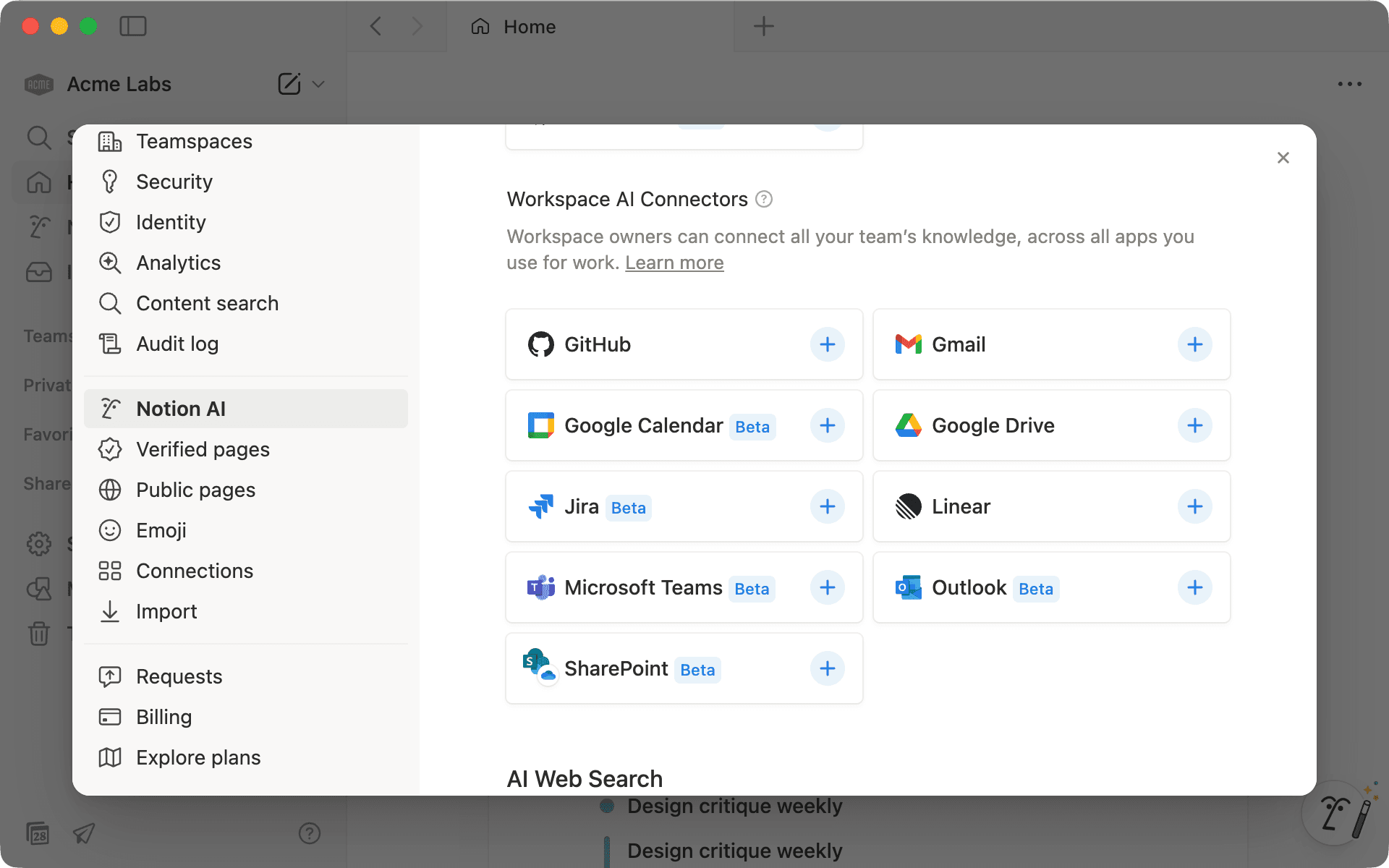
For example, with Google Drive connected, ask your Agent to create a campaign tracker from your existing folders. Try asking, “Look at the campaign folders in my Google Drive and create a campaign tracker. Each row should link to its matching folder and include the campaign name, status, and launch date.”
If you also connect Slack, Notion Agent can use recent team updates to catch changes that haven’t been reflected in Google Drive yet.
You can connect more tools, including GitHub and Jira, to give Notion Agent access to more of your team’s knowledge. See all available AI Connectors and how to set them up.

Work with your admin to set up AI Connectors
AI Meeting Notes can transcribe your meeting, summarize the discussion, and capture action items directly in Notion. Once the meeting is over, Notion Agent can use those notes to answer questions, find follow-ups, or turn next steps into tasks.
Start with a routine meeting like a team standup or 1:1:
Type
/meetto add an AI Meeting Notes block.Click
Startwhen the meeting begins. ClickStopwhen it ends.Get started by typing "/meet" or clicking the "Meet" pill at the bottom of a new Notion page.
If you use Zoom or Google Meet, Notion can detect when a call is starting and remind you to begin transcribing. Go to Settings → Notifications and turn on Meeting detection.
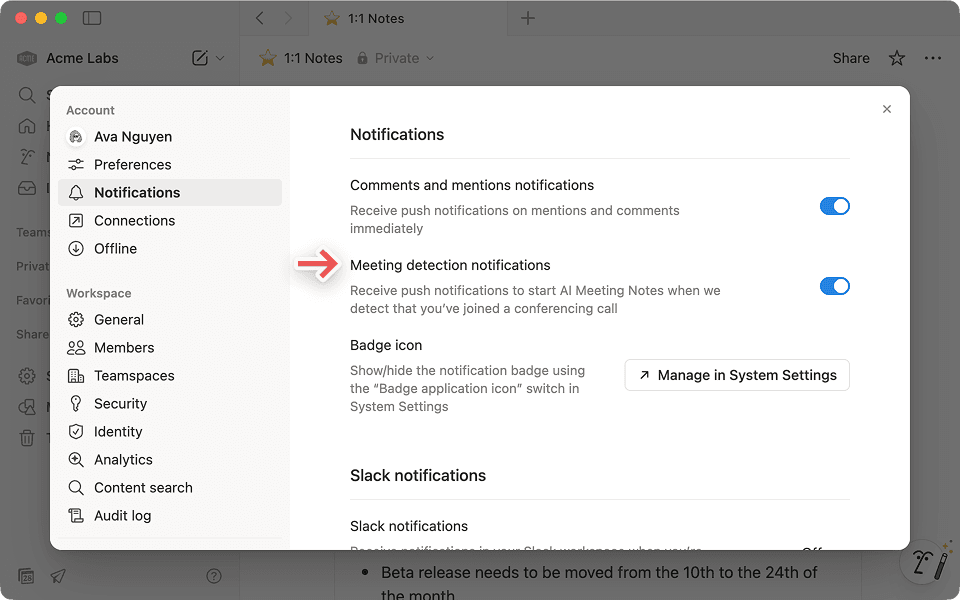
Who can access my AI Meeting Notes transcription and summary?
Here are a few ways to get more from AI Meeting Notes:
Choose a meeting format: Pick the format that best matches the conversation so your notes are organized in a useful way.
 Choose the format option for your meeting so Notion AI can organize your conversation more effectively.
Add an agenda: Add topics or questions before the meeting to help AI Meeting Notes focus the summary on what you planned to cover.
Ask your Agent about past meetings: Your Agent can use previous meeting notes to create recaps, prepare updates, or find themes across conversations.
You can ask Notion AI about previous meetings directly from your workspace. It provides clear answers and includes links to the original discussions.

Use your Notion Agent to organize recurring meetings
Learn more about AI Meeting Notes and permissions
Your Business Plan also includes more ways to create, organize, and manage work across your workspace:
Write and edit with AI: Use AI to organize and improve content. Ask Notion Agent to turn notes into outlines, pull out action items, translate content, and more.
Forms with conditional logic: Create forms that show different questions based on someone’s responses. Share them with your team, organization, or publicly.
Synced databases: Bring data from Jira, GitHub, or Asana into Notion and keep it synced as the source changes.
AI in databases: Use AI Autofill to summarize, tag, or categorize database entries. You can also generate formulas by describing what you want the formula to do.
Use AI formulas when you know what you want to build—but need help writing, editing, or fixing it.Set up security and workspace controls: Create private teamspaces, verify pages, export PDFs in bulk, and configure SSO or SAML.
Use your trial to put these features into practice. Start with one familiar workflow, add the tools and context it needs, and build from there as you get more comfortable with Notion AI. Check out our pricing page to see what full access to Notion AI includes.

More resources
For more ideas, explore Notion AI use cases to see how teams are putting AI to work.
Har vi missat något?